
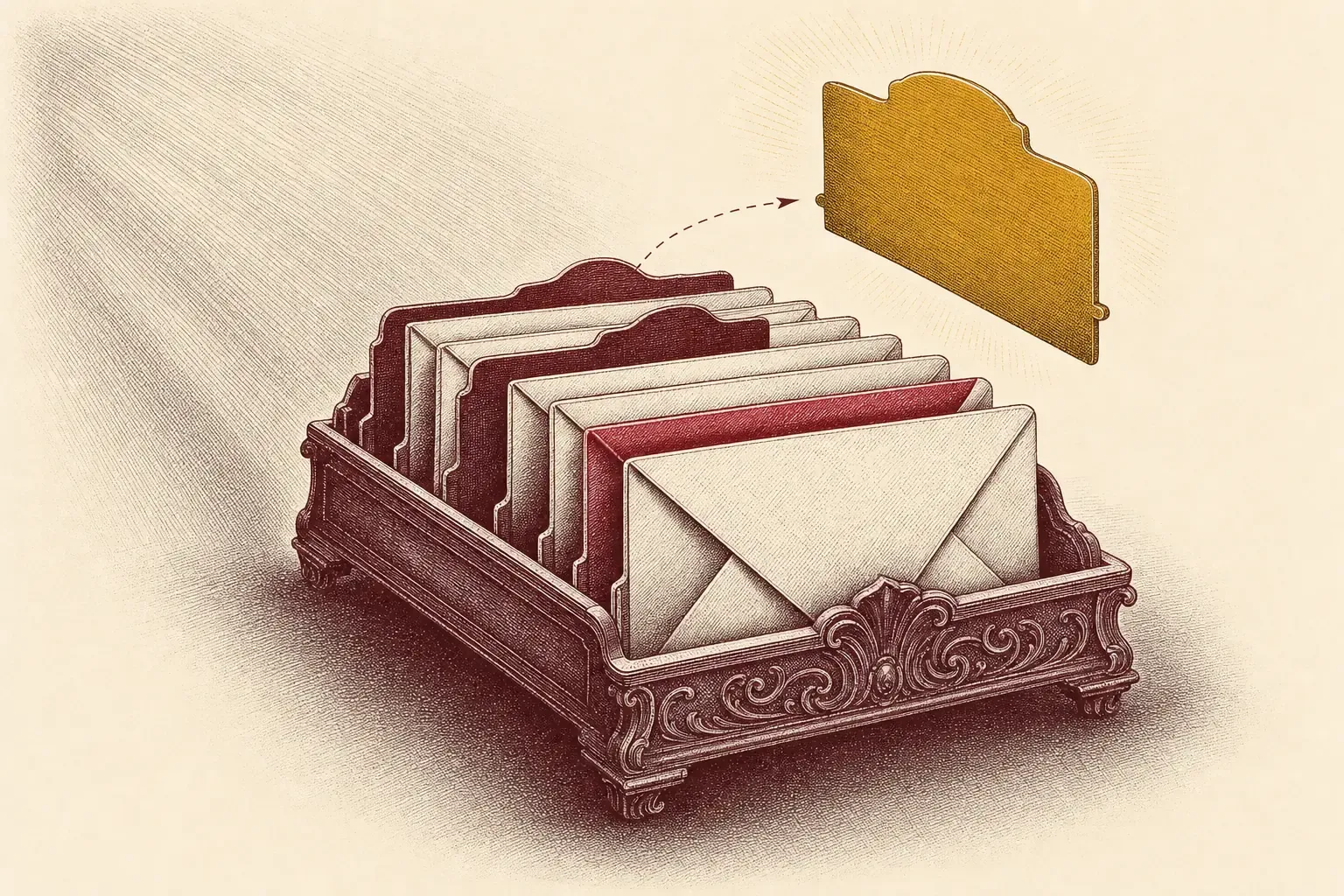
Google spent the spring of 2026 pouring AI into Gmail — AI Overviews in search landed in April — yet the one tab nobody asked for is still sitting there sorting your coupons. I disabled the Promotions tab on a 40,000-message account, then removed the other category tabs entirely, and timed how much calmer Primary felt afterward. Here is the exact click path, where that mail actually goes once the tab is gone, and the cleanup step that makes turning it off worth doing.
What the Promotions Tab Is
The Promotions tab is one of Gmail’s five automatic inbox categories — Primary, Social, Promotions, Updates, and Forums — that only exist when your Inbox type is set to Default. It groups deals, offers, and marketing mail into its own tab so they stay out of Primary.
Per Google’s Gmail Help on inbox categories, Gmail auto-sorts incoming mail into five buckets: Primary (mail from people you know), Social (networks and media sites), Promotions (deals and offers), Updates (automated confirmations and notifications), and Forums (mailing lists and discussion boards). You cannot invent your own categories — you only get to switch the five Google ships on or off.
These tabs are a property of the Default inbox type. Switch to Priority Inbox or Multiple Inboxes and the tabs disappear, because the other inbox types organize mail by importance or by your own search queries instead. So “disabling the Promotions tab” is really “telling the Default inbox to stop drawing that one category.” The mail keeps coming; it just stops getting its own home.
How to Disable the Promotions Tab
On a computer, open Gmail, click the Settings gear, set Inbox type to Default, click Customize, uncheck Promotions in the Select categories dialog, and click Save. Gmail rebuilds the inbox without the Promotions tab in a couple of seconds.
Step by step:
- Open Gmail at mail.google.com in a desktop browser.
- Click the Settings gear at the top right — the Quick settings panel slides in.
- Under Inbox type, make sure Default is selected (the tabs only exist on Default).
- Click Customize beneath the inbox type options.
- In the Select categories dialog, uncheck Promotions.
- Click Save at the bottom.
Gmail redraws the inbox immediately and the Promotions tab vanishes. Note one hard limit from Google’s documentation: if your account holds more than 250,000 emails, the Default inbox type is unavailable, so you would have to thin the account first or use a different inbox type. Primary stays ticked no matter what — every message needs somewhere to land.
Where Promotional Mail Goes Next
After you disable Promotions, that mail does not get blocked or filtered — it flows straight into the Primary tab. Disabling a category only stops Gmail from grouping it; the volume of marketing mail is unchanged, so Primary gets busier unless you also cut the senders.
This is the part that catches people out. Turning off the tab is cosmetic: every newsletter, sale alert, and “we miss you” email that used to sit quietly in Promotions now lands in Primary, mixed with mail from real people. On a busy account that can make Primary worse, not better, because the noise you used to ignore is now front and center.
The fix is to cut the actual volume before — or right after — you flip the switch. Mass-unsubscribing from the bulk senders you never read does the heavy lifting that disabling the tab does not: a tool like Leave Me Alone sweeps your subscriptions in a single pass, so the mail that would have crowded Primary never arrives. Pair that with a routine for deleting promotional emails in bulk and Primary stays the clean, people-only inbox you wanted in the first place.
Removing All the Category Tabs
To collapse Gmail to a single inbox, open the Customize dialog and uncheck Social, Promotions, Updates, and Forums, leaving only Primary. Save, and Gmail shows one chronological list with no tabs at all.
If the Promotions tab is not your only annoyance, you can strip the inbox down to one stream. In the same Select categories dialog:
- Uncheck Social — community and media-site notifications fold into Primary.
- Uncheck Promotions — marketing mail folds into Primary.
- Uncheck Updates — receipts and automated confirmations fold into Primary.
- Uncheck Forums — mailing-list traffic folds into Primary.
- Leave Primary checked — it cannot be turned off; it is the catch-all.
Click Save and Gmail collapses to a single chronological inbox, the way mail looked before tabs existed. The trade-off is the same as disabling Promotions alone, just bigger: everything is now in one place, so the only thing standing between you and chaos is how aggressively you unsubscribe and filter. Many people who go single-inbox also lean on Gmail filters that delete unwanted mail automatically to keep the one stream from drowning.
Disable vs Filter vs Unsubscribe
Disabling the Promotions tab is cosmetic — the mail still arrives, just in Primary. A filter changes where mail lands or deletes it by rule. Unsubscribing stops the mail at the source. For a genuinely quieter inbox you usually want all three, not just the tab toggle.
The three approaches solve different problems, and confusing them is why people disable the tab and feel no relief:
- Disable the category — removes the tab, dumps that mail into Primary. Zero effect on volume. Use it only if you dislike the tabbed layout itself.
- Filter it — build a rule that skips the inbox, applies a label, or deletes promotional mail outright, so it never clutters Primary. This is where real control lives; our guide to filtering and deleting mail automatically walks through the actions screen.
- Unsubscribe — kills the mail at the source so no tab or filter is needed. The cleanest fix for senders you will never read again; see how automatic unsubscribe works in Gmail.
My order after testing all three on the same account: unsubscribe first to cut volume, filter what is left for senders you want but want quiet, and only then decide whether the tabs help or hurt. Toggling the tab last, once the noise is already gone, is when the decision is purely about layout preference.
Turning It Off on Mobile
You cannot disable categories from the Gmail mobile app — the category controls are web-only. Set Inbox type to Default and uncheck Promotions from Gmail in a desktop browser, and the change syncs to the Android and iOS apps automatically.
The Gmail apps let you switch between tabs and even hide a tab from view, but the actual on/off control for the five categories lives only in the web Quick settings panel. So the workflow is: configure once on a laptop, and the apps catch up on their next sync. If you do most of your reading on a phone, that is fine — you still only have to do the setup step once.
If you have already turned off Promotions on the web and it is still showing on mobile, force a sync by pulling to refresh, or sign out and back in. The setting is account-level, so it should propagate within a minute or two of saving on desktop.
Verdict
Disabling the Promotions tab is worth doing only if you actually dislike the tabbed layout — on its own it just moves marketing mail into Primary. Pair it with an unsubscribe pass and a few filters and it becomes part of a real cleanup. Skip the toggle and go straight to filtering if your goal is less mail, not a different layout.
Best for: people who hate the multi-tab inbox and want one clean stream, and who will follow up by unsubscribing from bulk senders so Primary does not inherit the noise.
Skip if: your real problem is volume, not layout — in that case filters and unsubscribing do the work, and the Promotions tab is actually helping by keeping marketing mail out of Primary while you clean up.
Turn off the tab in six clicks on the web, but treat it as the last step of a cleanup, not the first. Cut the mail at the source, route what is left with filters, and only then decide whether the tabs earn their place. Done in that order, a single quiet Primary is completely achievable. For senders that keep sneaking through, see why Gmail spam still gets through sometimes.

Alexis Dollé, email expert for 10+ years. Founder of Email Tools. I test every email client and utility myself, then write about them the way I’d explain them to a friend — no marketing fluff, no sponsored rankings, every claim sourced.
LinkedInSources & references
- Google Gmail Help, “Add or remove inbox categories & tabs in Gmail” — the five categories (Primary, Social, Promotions, Updates, Forums), Default inbox type requirement, the Customize / Select categories dialog, unchecking to remove, the 250,000-email Default limit. Accessed 2026-06-08. support.google.com/mail/answer/3094499
- Google Gmail Help, “Change your Gmail inbox layout” — Default vs. other inbox types and how categories attach to the Default inbox. Accessed 2026-06-08. support.google.com/mail/answer/3055016
- Google Workspace Updates, “Search faster and smarter with AI Overviews in Gmail search,” April 22, 2026 (freshness reference for Gmail’s 2026 direction). Accessed 2026-06-08. workspaceupdates.googleblog.com
Frequently Asked Questions
How do I disable the Promotions category tab in Gmail?
On a computer, open Gmail, click the Settings gear, set Inbox type to Default, click Customize, uncheck Promotions in the Select categories dialog, and click Save. Gmail rebuilds the inbox without the Promotions tab, and promotional mail flows into Primary instead. The change is web-only to configure but syncs to the mobile apps.
Where does promotional mail go after I turn off the Promotions tab?
It moves into the Primary tab. Disabling a category does not block or filter that mail — it only stops Gmail from grouping it into its own tab. So Primary gets noisier unless you pair the change with filters or a mass-unsubscribe pass to actually cut the volume of bulk senders.
Can I remove all Gmail category tabs and have one inbox?
Yes. In Settings, set Inbox type to Default, click Customize, and uncheck Social, Promotions, Updates, and Forums, leaving only Primary. Save, and Gmail collapses to a single chronological inbox with no tabs at all. Primary cannot be unchecked because every message needs a home.
Can I turn off the Promotions tab on the Gmail mobile app?
Not directly. The category controls are web-only, so you set them from Gmail in a desktop browser. Once saved, the change syncs to the Android and iOS apps automatically. The mobile apps let you swap between tabs but not add or remove categories.
Does disabling the Promotions tab stop the ads at the top of the inbox?
It can reduce them. The sponsored entries Gmail shows are tied to the Promotions and Social tabs, so removing those categories generally removes the inline ad slots that appear inside them. Turning off Promotions is the simplest way to stop those ad placements without a paid Workspace plan.
What is the difference between disabling Promotions and filtering it?
Disabling the category removes the tab and dumps that mail into Primary — the mail still arrives. A filter, by contrast, can skip the inbox, apply a label, or delete promotional mail automatically based on rules you set. Disabling is cosmetic; filtering changes where the mail actually ends up.
Related: How to delete promotional emails — clear the pile the tab used to hide. Automatic unsubscribe in Gmail — stop bulk mail at the source. Gmail filters that delete automatically — route what is left without lifting a finger.