
As of 2026, the fields next to a Gmail email — Cc and Bcc — still trip people up constantly, and the wrong one can leak a hundred strangers’ addresses in a single click. I sent myself test emails across both fields, hit reply all, and watched exactly who could see whom. Here is gmail cc vs bcc explained plainly, when to use each, and the two keyboard shortcuts that make both effortless.
What Cc means in Gmail
Cc stands for carbon copy. Anyone you add to the Cc field receives the email and is visible to every other recipient — they see the full list, and the full list sees them.
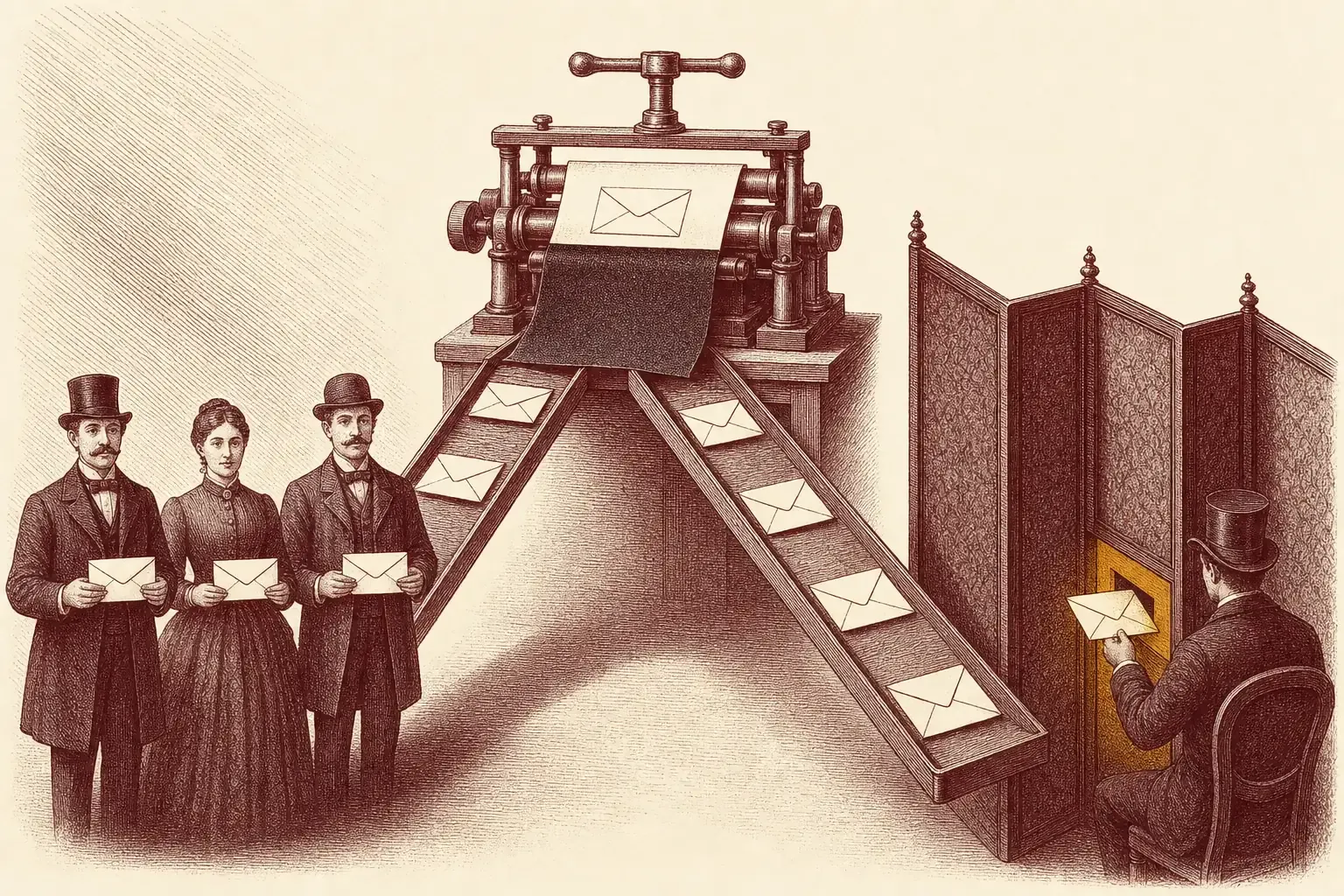
The name is a leftover from typewriters, where a sheet of carbon paper made a duplicate of a letter as you typed. Cc carries that meaning straight into email: it is an open, on-the-record copy. According to Google’s Gmail Help, anyone in the Cc field “will see the other recipients of the message.”
In practice, Cc is the “keeping you informed” field. The people in To are the ones you expect to act or reply; the people in Cc are along for visibility. When I Cc’d a second address on a test email and opened it from that account, I could see both the To recipient and myself listed at the top — nothing was hidden, exactly as expected.
Best for: looping in colleagues who should see the thread but do not need to respond, where everyone already knows each other and transparency is fine.
What Bcc means in Gmail
Bcc stands for blind carbon copy. Recipients you add to Bcc receive the email, but their addresses stay hidden — other recipients never see them, and Bcc recipients cannot see each other.
Bcc is Cc with the names redacted. The mechanism dates back to the same typewriter era: a typist would add a name to a copy without the carbon paper, so it never appeared on the version sent to everyone else. Email does the technical equivalent — the address is delivered the message but stripped from the headers other people see.
Google’s Gmail Help is precise about the visibility rules: people you add to Bcc “see those in the To and Cc fields but can’t see other Bcc recipients.” And critically, the To and Cc recipients never learn that a Bcc field was used at all. I confirmed this by Bcc’ing a second account and checking both inboxes — the main recipient’s copy showed no trace of the hidden one.
Best for: emailing a group who do not know one another, or quietly keeping someone in the loop without the main recipient seeing it.
The core difference: visible vs hidden
The core difference is visibility. Cc recipients are shown to everyone on the email; Bcc recipients are hidden from everyone, including each other. That single distinction decides which field protects privacy.
Strip away the history and it comes down to one question: should the other recipients know this person got the email? If yes, use Cc. If no, use Bcc. Everything else follows from that.
Here is the side-by-side that matters:
- Cc — every recipient sees every other recipient. Fully transparent. Reply-all goes to the whole list, including Cc.
- Bcc — each Bcc recipient is invisible to the others and to the To/Cc group. They see only the To and Cc names. Per Google’s Gmail Help, “if people reply all to a message, people in Bcc won’t see the reply.”
That reply-all behaviour is the safety net most people overlook. Because a reply-all never reaches the Bcc list, a hidden recipient cannot be dragged into an exchange they were only meant to observe — and they cannot accidentally out themselves to the whole thread.
When to use Cc
Use Cc when every recipient should openly see who else is on the email and transparency helps — looping in a manager, copying a teammate on a client reply, or keeping a small known group informed.
Cc earns its place when the relationships are already in the open. A few cases where it is the right call:
- Copying your boss on a client email so they have visibility, and the client knows they are looped in.
- Keeping a colleague informed on a thread they are not driving but should follow.
- Small internal groups — three or four people who all know each other and benefit from seeing the full recipient list.
The trap is using Cc when the list gets long or the recipients are strangers. Once a dozen unrelated people can see each other’s addresses, you have created a privacy problem and an invitation for a noisy reply-all storm.
Skip Cc if: the recipients do not know each other, the list is long, or exposing one person’s address to the rest would be awkward. Those all point to Bcc.
When to use Bcc
Use Bcc when you email people who do not know each other, when you are messaging a large group, or when an address must stay private. Bcc keeps every hidden recipient invisible to the rest.
This is the field that prevents the most common email privacy mistake. Reach for Bcc when:
- You email many recipients at once — an announcement, an update, a one-off blast to clients or contacts. Putting them all in To or Cc exposes every address to everyone; Bcc protects all of them.
- The recipients are strangers to each other. A community email, an invite list, a notice to customers — none of them should see the others’ addresses.
- You want to discreetly include someone. Forwarding a sensitive thread to a colleague for awareness without the original sender seeing it. Use this honestly (see the etiquette note below).
Use Bcc when: more than a handful of unrelated people are receiving the same message, or any time revealing one recipient’s address to the others would be a privacy breach. For genuinely sensitive content, pair good Bcc habits with stronger tools like Gmail confidential mode so the message itself is harder to re-share.
How to add Cc and Bcc in Gmail
In Gmail, open Compose and click “Cc” or “Bcc” next to the To field to reveal them. On the keyboard, press Ctrl/Cmd + Shift + C for Cc and Ctrl/Cmd + Shift + B for Bcc.
On desktop, the Cc and Bcc links sit at the right edge of the To field in any new message — click either one and the field appears. To enter more than one address, Google notes you “put a comma between each name or email address.”
Far faster, though, are Google’s official keyboard shortcuts, which I use on every email:
- Cc:
Ctrl + Shift + C(Windows/Linux) orCmd + Shift + C(Mac). - Bcc:
Ctrl + Shift + B(Windows/Linux) orCmd + Shift + B(Mac).
On the Gmail mobile app for Android and iPhone, tap Compose, then tap the down-arrow (or the To field’s expand control) to reveal the Cc and Bcc lines, and add addresses there. If you live in your keyboard, it is worth learning these alongside the rest of the Gmail keyboard shortcuts list — the time saved compounds across a day of email.
Common Cc and Bcc mistakes
The biggest mistakes are mass-emailing strangers in To or Cc (leaking every address), expecting Bcc recipients to follow a reply-all thread, and using Bcc to secretly loop someone into a private conversation.
After years of watching email go wrong, the same handful of errors come up:
- Mass email in To or Cc. The classic leak — one announcement to 200 customers in Cc, and now all 200 have each other’s addresses. This is a real privacy incident. Always Bcc large or unfamiliar lists.
- Assuming Bcc people stay in the conversation. They do not. Because reply-all excludes Bcc, a hidden recipient only ever sees the original message, not the replies. If someone needs to follow the whole exchange, Cc them or forward separately.
- The sneaky Bcc. Quietly Bcc’ing a third party into a one-to-one email is the etiquette landmine. The blind-carbon-copy reference notes the main recipient “is knowingly kept unaware of others participating,” which “may be viewed as mildly unethical.” Worse, if your Bcc’d colleague hits reply-all out of habit, the secret is out — and it has burned more than one professional relationship.
A safer pattern for sensitive sends: write the email, double-check the field each address is in, and give yourself a buffer. Gmail’s undo send window catches the wrong-field mistake before it leaves, and schedule send lets you reread a big Bcc blast with fresh eyes before it goes out.

Alexis Dollé, email expert for 10+ years. Founder of Email Tools. I test every email client and utility myself, then write about them the way I’d explain them to a friend — no marketing fluff, no sponsored rankings, every claim sourced.
LinkedInFrequently asked questions
What is the difference between Cc and Bcc in Gmail?
Cc (carbon copy) shows every recipient to everyone else on the email — people in Cc see, and are seen by, the whole list. Bcc (blind carbon copy) hides those addresses: a Bcc recipient can see the To and Cc names but not other Bcc recipients, and the To/Cc people never know a Bcc was added at all. Use Cc to loop people in openly; use Bcc to protect addresses or message a large group.
When should I use Bcc in Gmail?
Use Bcc when you email many people who do not know each other — an announcement, a newsletter, a one-off blast — so nobody’s address is exposed to strangers. It is also the right field for discreetly keeping a manager or colleague in the loop without the main recipient seeing it. The rule of thumb: more than a handful of unrelated recipients, or any time exposing an address would be a privacy problem, put them in Bcc.
Can people in Bcc see each other?
No. According to Google’s Gmail Help, people you add to Bcc can see who is in the To and Cc fields, but they cannot see other Bcc recipients, and the To and Cc recipients never see the Bcc list at all. Each Bcc recipient effectively receives a private copy.
What is the keyboard shortcut for Cc and Bcc in Gmail?
In a Gmail compose window, press Ctrl + Shift + C (Cmd + Shift + C on Mac) to open the Cc field, and Ctrl + Shift + B (Cmd + Shift + B on Mac) for the Bcc field. These are Google’s official compose shortcuts and save you reaching for the mouse on every email.
Does Bcc work if someone replies all?
Bcc protects you here. Google’s Gmail Help states that if people reply all to a message, the recipients you added to Bcc will not receive the reply. So a Bcc recipient cannot accidentally expose themselves to the whole thread by hitting reply all — only their own direct reply to you goes through.
Is it rude or unethical to use Bcc?
It depends on intent. Using Bcc to protect strangers’ addresses on a group email is good etiquette and expected. Quietly Bcc’ing a third party into a private one-to-one conversation is the grey area — the carbon-copy reference notes this keeps the main recipient unaware others are reading, which some consider mildly unethical. Be honest: protect privacy with Bcc, do not use it to spy.
Sources & references
- Google, “Send or unsend Gmail messages” — official Gmail Help confirming that Cc recipients are visible to all, Bcc addresses are hidden, Bcc recipients see To/Cc but not each other, and reply-all does not reach Bcc. Accessed 2026-06-04. support.google.com/mail/answer/2819488
- Google, “Keyboard shortcuts for Gmail” — official source for the compose shortcuts to add Cc (Ctrl/Cmd + Shift + C) and Bcc (Ctrl/Cmd + Shift + B) recipients. Accessed 2026-06-04. support.google.com/mail/answer/6594
- Wikipedia, “Blind carbon copy” — reference for the carbon-copy origin of the term and the reply-all etiquette and privacy risk of Bcc. Accessed 2026-06-04. en.wikipedia.org/wiki/Blind_carbon_copy
Related: Gmail keyboard shortcuts list, Gmail confidential mode, undo send in Gmail.