
With roughly 392.5 billion emails projected to move worldwide every day in 2026, the problem is no longer finding mail — it is deciding what to read first. Folders do not solve that; a priority system does. I rebuilt my own triage across Gmail and Outlook on the same four-tier method, then carried it to Apple Mail and Thunderbird, and it held up in every one — because it leans on flags, stars, and named senders that exist everywhere, not on one client’s pet feature. Here is the exact system: the tiers, the VIP setup, the daily pass, and where it breaks.
Why Priority Beats Folders
Folders answer “what is this about”; priority answers “when do I act”. A message can sit in one project folder yet be act-now today and reference next week, so priority is a time signal that flags and stars express far better than a static folder ever can.
Most inbox advice tells you to build folders. Folders are fine for archiving — they group mail by topic so you can find it later. But they are the wrong tool for deciding what to open first, because topic and urgency are different axes. The contract from your biggest client and a newsletter about contracts both belong in a “Contracts” folder; only one of them needs you today.
Priority is about time, not topic. The cleanest way to express it is the Eisenhower method — named after Dwight D. Eisenhower, who split work into the urgent and the important. Important-and-urgent gets done now; important-but-not-urgent gets scheduled; urgent-but-unimportant gets delegated; neither gets dropped. That two-axis split maps cleanly onto email, and unlike a folder tree it travels across every client because every client has flags, stars, or categories to express it.
Define Your Four Priority Tiers
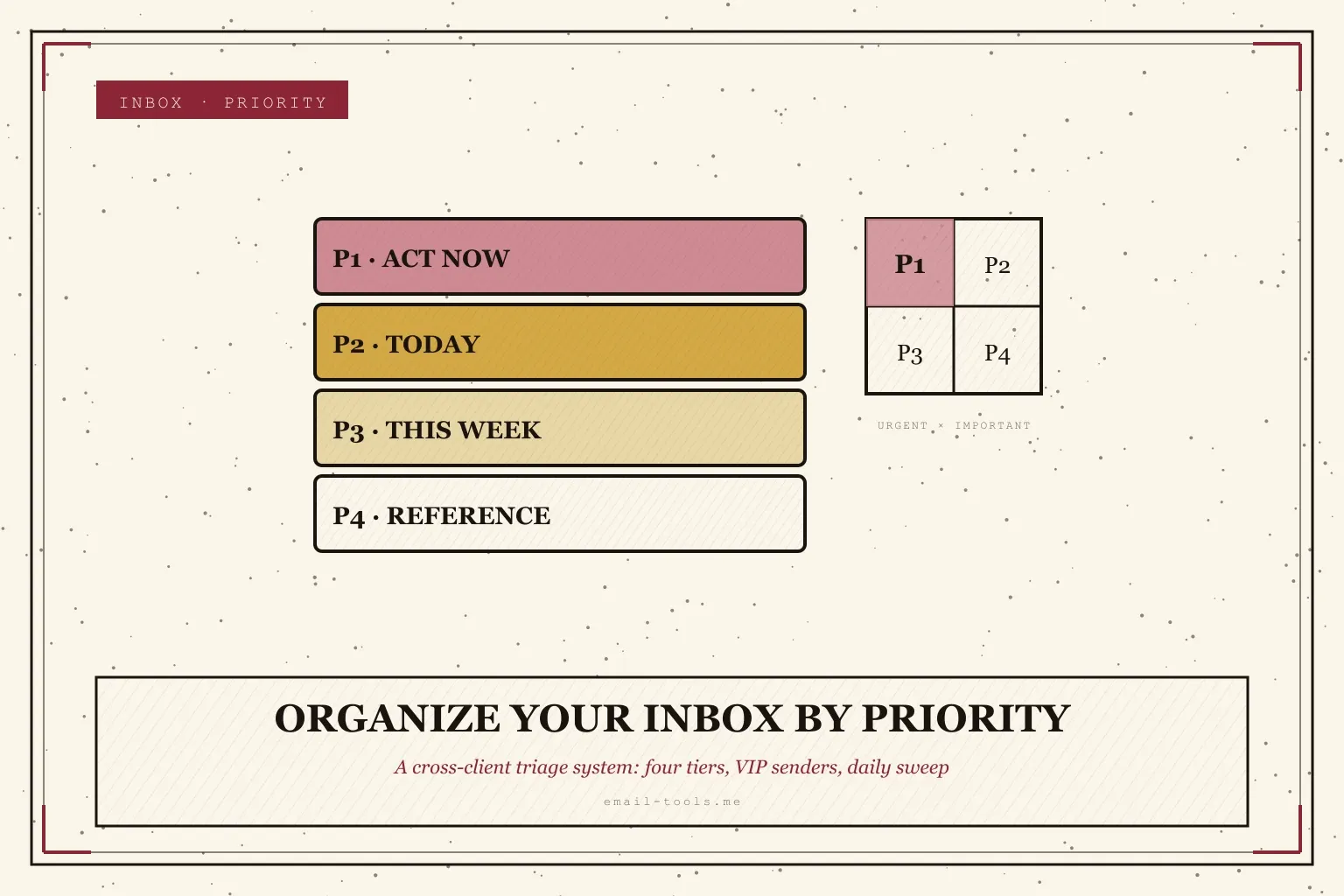
Set four tiers and write a one-line rule for each: P1 act-now (reply or do within the hour), P2 today, P3 this-week, P4 reference or noise. The rules must be concrete enough that the same message lands in the same tier whether you open Gmail or Outlook.
The whole system rests on tiers you can apply without thinking. Four is the sweet spot — enough granularity to separate “now” from “later”, few enough to assign in a half-second. A working definition:
- P1 — act-now. Needs a reply or an action within the hour. A client blocked on you, your manager asking for something live, a payment failure.
- P2 — today. Matters, but not this minute. Clear it before you log off.
- P3 — this-week. Real work that can wait days — a review request, a scheduling thread, a non-urgent question.
- P4 — reference or noise. Receipts to file, newsletters, notifications, anything you never need to reply to.
Write these four lines down once. The point is that the rule, not your mood, decides the tier — so a message from the same sender about the same thing lands identically every time, in any client. That consistency is what lets the method survive a move from Gmail to Outlook without rebuilding anything.
Mark Your VIP Senders
List the 10 to 20 people whose mail is always P1 or P2 — manager, key clients, your team — and flag them automatically in every client: Apple Mail’s built-in VIP feature, a Gmail filter that stars them, an Outlook rule that flags them, Thunderbird tags. The sender becomes the signal so you never re-triage them.
Most of your true priorities come from a small, stable set of people. Identify them once and let the client do the sorting:
- Apple Mail has a native VIP feature — add a contact as a VIP and their mail collects in a dedicated VIP mailbox with its own notifications.
- Gmail has no VIP label, but a filter that matches
from:a named sender and applies a star or a “VIP” label does the same job. Pair it with Gmail labels as a priority layer so the tier is visible at a glance. - Outlook uses rules: a rule that flags or categorizes mail from named senders reproduces the VIP idea, and Focused Inbox already tends to keep frequent contacts in Focused.
- Thunderbird uses tags and filters — tag a sender’s mail on arrival, then sort or color by tag.
The discipline is to keep the list short. A VIP list of 50 people is just a second inbox. Twenty names, maximum, so a VIP flag genuinely means “this is one of the few”.
Turn Flags and Stars Into Signals
Assign one visual marker per tier that exists in every client — a star or flag for P1, a colored label or category for P2, nothing for P3 — and keep the same meaning everywhere. A glance at the marker then tells you the tier without reading the subject.
Tiers are useless if you cannot see them. The trick is to pick markers that exist across clients and freeze their meaning:
- P1 → a star (Gmail) or a flag (Outlook, Apple Mail). The single most prominent marker, reserved for act-now.
- P2 → a colored label (Gmail), category (Outlook), or colored flag (Apple Mail). Visible but secondary.
- P3 → no marker. If it has no flag and no color, it is this-week work waiting its turn.
- P4 → archived or routed away on sight, so it never carries a marker in the inbox at all.
Gmail’s coloured stars and Outlook’s coloured categories both give you several shades — but resist using all of them. Three meanings, mapped to P1, P2, and “everything else”, is what keeps the glance instant. This is the same restraint that keeps a clean inbox clean: fewer signals, each one meaning exactly one thing.
Use the Native Priority Feature
Layer the client’s built-in importance predictor underneath your manual tiers: Gmail Priority Inbox and Outlook Focused Inbox both predict importance from your behavior and surface likely-important mail to the top, handling the long tail your VIP rules do not cover.
Your VIP rules cover the senders you can name. The native features cover the ones you cannot — the new client, the occasional contact — by predicting importance from how you behave.
- Gmail Priority Inbox separates the inbox into configurable sections that float predicted-important mail to the top. If you live in Gmail, the deeper walkthrough is in our Gmail Priority Inbox setup guide.
- Outlook Focused Inbox splits mail into two tabs: per Microsoft’s documentation, “your most important email messages are on the Focused tab while the rest remain easily accessible — but out of the way — on the Other tab.” Our Outlook Focused Inbox setup guide covers the configuration.
Treat prediction as the floor and your tiers as the ceiling. The feature gets the obvious cases right and saves you triage on routine mail; your VIP rules and manual flags override it for the cases you care about most. Apple Mail and Thunderbird have no equivalent predictor, which is exactly why the manual tier layer matters — it is the part that ports everywhere.
Run a Daily Triage Routine
Once or twice a day, go top to bottom and assign every new message a tier, then act only on P1 and P2 in that pass. Batching triage into fixed passes beats reacting to each notification, because you assign tiers calmly and clear the top two tiers in one sitting.
A priority system is a verb, not a noun — it works only if you run the pass. The routine:
- Open once or twice a day, not continuously. Notifications pull you into reactive mode; a scheduled pass keeps you in control.
- Top to bottom, assign a tier to everything. Star the P1s, label the P2s, leave P3s, route P4s out. This is fast once the VIP rules and native predictor have pre-sorted most of it.
- Act on P1 and P2 only. P3 waits for a dedicated block later in the week; P4 is already gone.
- End on an empty top tier. The goal of the pass is zero unactioned P1s, which is a far more reachable target than a fully empty inbox.
For people running several accounts at once, the same pass applies per account or across a unified inbox — the tiers are identical, only the surface changes. The routine is the part most people skip, and it is the part that actually makes the system work.
Keep Low-Priority Noise Out
P4 noise — newsletters, notifications, bulk senders — has to be removed at the source, not re-filed each day. Unsubscribe from anything you do not read, auto-archive the rest with filters, so the priority view only ever holds mail a person actually sent you.
The fastest way to break a priority system is to let P4 pile up where the P1s live. Every newsletter you skim past is a small tax on attention, and at hundreds of messages a week it adds up. Two moves keep it out:
- Unsubscribe, do not delete. Deleting a newsletter is a chore you repeat forever; unsubscribing ends it. Sweep the bulk senders you never open in one pass rather than one by one.
- Auto-archive the rest. Receipts, shipping notifications, and system alerts you might need later but never need now should skip the inbox via a filter or rule and land straight in a label or folder.
This is where the priority view and a genuinely organised work inbox converge: the less P4 reaches the inbox, the more the flags and stars on your real priorities actually stand out. Keeping that bottom tier empty is ongoing maintenance, not a one-time cleanup — which leads to the system’s real limit.
Where the System Breaks
The method fails when the tiers go stale or the P4 layer is left to grow. Priority is not set-and-forget: VIP lists change as your work changes, native predictors drift, and unmaintained noise slowly buries the signal. The system needs a few minutes of upkeep a week to keep working.
No priority system is automatic forever. The honest limits:
- Tiers drift. A client who was P1 during a launch is P3 once it ships. If you never revisit the VIP list, last quarter’s priorities clutter this quarter’s.
- Predictors are guesses. Priority Inbox and Focused Inbox learn from behavior and get it wrong on edge cases — a one-off important mail from a stranger, a chatty colleague over-promoted. They reduce triage; they do not replace judgement.
- Noise regrows. Unsubscribe today and new subscriptions accrete over months. Without a recurring sweep, the P4 layer creeps back into the inbox.
- Cross-client drift. Set up VIP rules in Gmail and they do not copy themselves to Outlook. A genuinely multi-client setup means maintaining the same rules in each place — the method ports, the configuration does not.
None of these is fatal. Budget five minutes a week to prune the VIP list, correct a few mis-predicted messages, and run an unsubscribe sweep, and the system holds. Skip the upkeep for a month and you are back to a flat inbox.
Verdict
A four-tier priority method — P1 to P4, VIP senders, consistent flags, a daily pass, and an empty P4 layer — is the most portable way to organize an inbox, because it relies on features every client shares. Layer the native predictor underneath for the senders you cannot name, and maintain it five minutes a week.
Best for: anyone working across more than one email client, or anyone who wants a prioritization habit that survives switching apps. The flags-and-senders foundation means you learn it once and it works in Gmail, Outlook, Apple Mail, and Thunderbird alike.
Skip if: you live entirely in one client and want the absolute least setup — in that case, just turn on that client’s native feature (Priority Inbox or Focused Inbox) and lean on it, without building the full tier system.
Define the four tiers, mark a short VIP list, freeze one marker per tier, run a daily pass, and keep P4 out at the source. Spend five minutes a week maintaining it, and your inbox stops being a chronological pile and starts being a queue ordered by when you actually need to act.

Alexis Dollé, email expert for 10+ years. Founder of Email Tools. I test every email client and utility myself, then write about them the way I’d explain them to a friend — no marketing fluff, no sponsored rankings, every claim sourced.
LinkedInSources & references
- Google Gmail Help, “Use Priority Inbox to focus on important email” — importance prediction and configurable sections that float important mail to the top. Accessed 2026-06-14. support.google.com/mail/answer/186531
- Microsoft Support, “Focused Inbox for Outlook” — Focused and Other tabs, important mail on Focused. Accessed 2026-06-14. support.microsoft.com — Focused Inbox for Outlook
- Wikipedia, “Time management” — the Eisenhower method and the urgent/important quadrants attributed to Dwight D. Eisenhower. Accessed 2026-06-14. en.wikipedia.org/wiki/Time_management
- DemandSage, “How Many Emails Are Sent Per Day” — 392.5 billion emails per day projected for 2026 (freshness reference). Accessed 2026-06-14. demandsage.com — How Many Emails Are Sent Per Day
Frequently Asked Questions
What is the best way to organize an email inbox by priority?
Use a tier system instead of folders. Define four levels — P1 act-now, P2 today, P3 this-week, P4 reference or noise — then mark VIP senders so their mail auto-flags to P1 or P2, use a star or flag for the top tier, and run a short daily triage pass to assign every new message a tier. The method works identically in Gmail, Outlook, Apple Mail, and Thunderbird because it relies on flags and senders, not client-specific features.
How do I sort emails by importance automatically?
Combine two layers. First, let the client’s built-in importance feature surface likely-important mail: Gmail Priority Inbox or Outlook Focused Inbox both predict importance from your behavior. Second, add deterministic rules for the senders you are certain about — a Gmail filter or Outlook rule that always flags your boss or top client — so prediction handles the long tail and rules handle the senders you can name.
Should I use folders or priority tiers to organize my inbox?
Tiers scale better than folders for prioritization. Folders answer “what is this about”; tiers answer “when do I act”. A message can belong to one project folder yet still be P1 today and P3 next week, so prioritization is a time signal that flags and stars express better than a static folder. Keep folders or labels for archiving by topic, and use flags or stars for priority.
What is the Eisenhower matrix and how does it apply to email?
The Eisenhower method, named after Dwight D. Eisenhower, sorts tasks by two axes: urgent and important. Important-and-urgent is done now, important-but-not-urgent is scheduled, urgent-but-unimportant is delegated, and neither is dropped. Mapped to email, important-and-urgent is P1, important-not-urgent is P2 or P3, and urgent-but-unimportant or neither is P4 you archive or unsubscribe from.
How do VIP senders work in Apple Mail and Outlook?
Apple Mail has a built-in VIP feature: add a contact as a VIP and their mail collects in a dedicated VIP mailbox with its own notifications. Outlook does not have a VIP label, but a rule that flags or moves mail from named senders achieves the same result, and Focused Inbox tends to keep frequent contacts in Focused. In Gmail, a filter that stars or labels named senders is the equivalent.
How often should I triage my inbox?
Once or twice a day is enough for most people. Batching triage into one or two fixed passes beats reacting to every notification, because you assign tiers calmly and act on P1 and P2 in one sitting. The system only works if you also clear P4 — archive or unsubscribe from low-priority mail in the same pass so it never returns to compete with real priorities.
Related: Gmail Priority Inbox setup — the Gmail deep-dive for this method. Outlook Focused Inbox setup — the Microsoft equivalent. How to organize work emails — apply tiers to a work account.