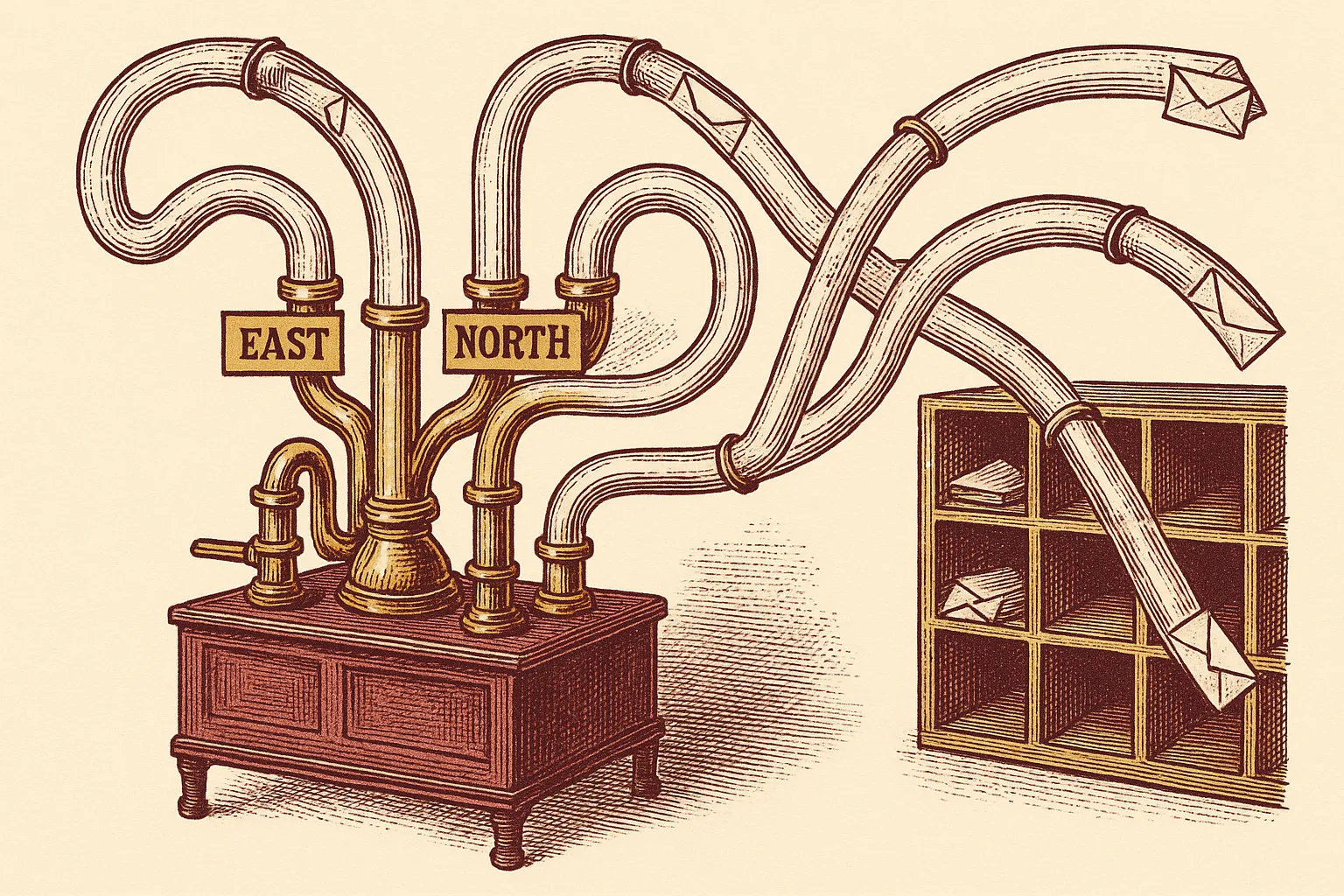
Microsoft ended support for the Windows 11 Mail and Calendar apps on December 31, 2024, auto-migrating users to new Outlook — which means the rules engine most Outlook users interact with has fundamentally shifted from client-side to server-side. That’s actually good news: rules you create today run on every device, forever, without Outlook needing to be open. Here is the exact setup for every flavor of Outlook that still exists, the conditions and actions that are available, and where rules silently break.
Create a Rule in New Outlook
In new Outlook for Windows, right-click any representative message, hover Rules, and select Create rule. Pick a destination folder for quick setup, or click More options to open the full condition and action builder. Rules save to your Microsoft 365 account server-side and apply on every device.
The full sequence:
- Open new Outlook for Windows.
- Right-click a message from the sender or with the subject pattern you want to automate.
- Hover Rules in the context menu, then click Create rule.
- The quick-create dialog appears. Pick a destination folder. Confirm with OK, or click More options for the full builder.
- In the full builder: give the rule a name, add conditions (From, Subject contains, Importance, Sent to, Body contains, etc.), add actions (move, delete, mark read, flag, forward, categorize, pin, stop processing).
- Optional: tick Run rule now on messages already in the current folder to apply retroactively.
- Click Save.
Edit, delete, reorder existing rules:
Open Settings → Mail → Rules. Every rule is listed with edit, delete, run-now, and priority-up/down icons. Drag or use arrows to reorder — rules run top-to-bottom until one triggers “stop processing.”
Create a Rule in Classic Outlook
In classic Outlook for Windows, right-click a message, hover Rules, select Create Rule, and pick a trigger. For full power, use File → Manage Rules & Alerts → New Rule and choose a template or start from blank. Classic Outlook supports both server-side (Exchange) and client-only rules.
Quick method — right-click:
- Right-click a representative message → Rules → Create Rule.
- Tick conditions (From, Subject, Sent to) and pick an action (play sound, pop up alert, move to folder).
- Check Run this new rule now on messages already in the current folder if you want it retroactive.
- Click OK.
Full builder — File menu:
- File → Manage Rules & Alerts → New Rule.
- Pick a template (e.g., “Move messages from someone to a folder”, “Flag messages from someone for follow-up”) or start from blank.
- Underlined values in the rule description are clickable — click each to fill in the specifics.
- Step through the wizard: conditions → actions → exceptions → name.
- Optionally tick Turn on this rule (on by default) and Create this rule on all accounts.
- Click Finish.
Server-side vs client-only: Classic Outlook marks any rule that uses client-only actions (play sound, show alert, print, move to PST) with a small desktop icon. Those rules only fire while Outlook is running. Pure Exchange-compatible rules (move to server folder, delete, forward, flag) run server-side and work on every device.
Outlook on the Web and Mobile
In Outlook on the web (outlook.live.com or outlook.office.com), go to Settings → Mail → Rules → Add new rule. Mobile apps (iOS/Android) cannot create rules directly, but any server-side rule created in the web interface applies automatically on mobile because Microsoft 365 runs the rules engine centrally.
Outlook on the web — creating a rule:
- Click the gear icon at the top right → View all Outlook settings (or just Settings).
- Navigate Mail → Rules → Add new rule.
- Name the rule.
- Under Add a condition, pick from the dropdown (From, To, Subject includes, Keywords in body, Has attachment, Importance, Sensitivity, etc.). You can chain multiple.
- Under Add an action, pick one or more (Move to, Copy to, Delete, Pin to top, Mark as read, Flag, Forward, Redirect, Categorize, Stop processing more rules).
- Optional: under Add an exception, pick conditions that prevent the rule from firing.
- Toggle Run rule now if you want retroactive application.
- Save.
Outlook.com limitation, per Microsoft’s documentation: rules in consumer Outlook.com apply only to messages received after rule creation. Retroactive application is only available in the Microsoft 365 / Exchange Online context (work/school accounts). If you have a personal Outlook.com account, process old mail manually before the rule or batch-process it via the mobile app’s Sweep feature.
Mobile (iOS/Android): rule creation is not exposed in the mobile app UI. But any rule you create in Outlook on the web or new Outlook for Windows runs server-side on your mailbox, so messages arriving on your phone are filtered automatically before you see them.
If Outlook itself is the friction — the sluggish launch, the buried rule manager, the split between “new” and “classic” — a purpose-built unified client rescues most of those hours. Mailbird handles Outlook, Gmail, Yahoo, and IMAP accounts in one interface with its own rules engine, faster search, and a layout that doesn’t change every quarter. One-time license, runs locally, no subscription.
Every Condition and Action Available
Outlook rules support roughly 30 conditions (From, Subject, Body, Importance, Sensitivity, Size, Attachment, Category, Sent via a specific account, Marked for follow-up, etc.) and about 20 actions (Move, Copy, Delete, Forward, Redirect, Reply with template, Flag, Categorize, Play sound, Show alert, Stop processing). Exchange Online rules and new Outlook expose a trimmed server-side subset; classic Outlook exposes the full catalog including client-only actions.
Common conditions worth knowing:
- From / From people or public group — single sender or a contact group.
- Sent to / Sent only to me / Where my name is in the To box — useful for filtering direct mail from list mail.
- With specific words in the subject / body / sender address / recipient address.
- Marked as importance (Low / Normal / High) or sensitivity (Normal / Personal / Private / Confidential).
- Which has an attachment / with size in a specific range.
- Received in a specific date range.
- Through the specified account — for multi-account setups, scope a rule to just one account.
Common actions worth knowing:
- Move to folder / Copy to folder — the workhorse.
- Delete (soft delete, recoverable) or Permanently delete it.
- Forward (your address stays on the From) or Redirect (original sender’s address stays on the From — important for delegated mailboxes).
- Reply using a specific template — auto-responder for specific conditions.
- Flag for follow-up with a specific interval.
- Mark as read / Mark as importance.
- Assign to category.
- Stop processing more rules — crucial for layered rule sets, covered below.
Five Rule Recipes Worth Copying
The five Outlook rules that cover the majority of inboxes: (1) auto-file newsletters to a Reading folder and mark read, (2) pin messages from your manager to the top, (3) forward calendar invites to a secondary address, (4) quarantine cold outreach with subject-keyword matching, (5) a catch-all “everything else to Other” as the last rule with stop-processing on.
1. Newsletter bucket. Condition: From contains newsletter OR digest OR weekly. Actions: Move to “Reading”, Mark as read, Stop processing.
2. Manager surface. Condition: From is manager@yourco.com. Actions: Pin to top (new Outlook), Flag for follow-up today, Categorize “Boss”, Stop processing.
3. Calendar mirror. Condition: Subject contains invitation OR Has attachment .ics. Action: Forward to your personal address. (Useful if you want weekend visibility without logging into work Outlook.)
4. Cold outreach quarantine. Condition: Body contains quick question OR hop on a call OR 15-minute chat. Action: Move to “Pitches” folder, Mark as read.
5. Everything else → Other. Last rule in the list. Condition: (empty — applies to everything that hit this point). Action: Move to “Other” folder. Make sure every preceding rule ends with “stop processing more rules” so real mail stays in the inbox.
Order matters. Outlook runs rules top to bottom. A badly ordered rule set (e.g., a “delete everything from Slack” rule above your “pin urgent from Slack” rule) will misfire.
Where Rules Silently Fail
Rules are reliable when you know their limits:
- 256 KB mailbox rules cap in Exchange Online and Microsoft 365. Complex rules with dozens of conditions add up fast. If a new rule refuses to save, simplify existing rules or delete dormant ones.
- Client-only rules pause when Outlook closes. Actions like “play a sound”, “show a desktop alert”, “move to a PST file”, or “print” only work while classic Outlook is running. Rewrite these actions to server-compatible equivalents if you need 24/7 enforcement.
- New Outlook does not support rules for Gmail/Yahoo/iCloud accounts. Microsoft explicitly documents this. Third-party accounts connected to new Outlook must be ruled on their source platform (Gmail filters, Yahoo filters, etc.).
- Outlook.com consumer rules don’t run retroactively. Only Exchange Online (work/school) accounts support the “run rule now” retroactive option in full.
- Rules run against the server copy. If you drag a message to a local PST, rules don’t see it. Keep mail on the server if you want rules to process it.
- Categories don’t sync perfectly across old and new Outlook. If your rule relies on a category that exists in one but not the other, it won’t fire consistently.
- Migration artifacts. Users migrated from Windows Mail to new Outlook in late 2024 lost any client-side filter logic they had set up in the legacy app. If some of your rules disappeared in that migration, you need to re-create them in new Outlook’s Settings → Rules.

Alexis Dollé, email expert for 10+ years. Founder of Email Tools. I test every email client and utility myself, then write about them the way I’d explain them to a friend — no marketing fluff, no sponsored rankings, every claim sourced.
LinkedInSources & references
- Microsoft Support, “Manage email messages by using rules in Outlook” — new Outlook, classic Outlook, and Outlook on the web step-by-steps; limitations on third-party account rules. Accessed 2026-04-20. support.microsoft.com/office/manage-email-messages-by-using-rules
- Microsoft Support, “Outlook for Windows: The Future of Mail, Calendar, and People on Windows 11” — confirmed end of support for Windows 11 Mail and Calendar apps on December 31, 2024 and auto-migration to new Outlook. Accessed 2026-04-20. support.microsoft.com/office/outlook-for-windows-future
- Microsoft Learn, “Stages of migration to new Outlook for Windows” — new Outlook general availability in August 2024 and rollout phasing. Accessed 2026-04-20. learn.microsoft.com/microsoft-365-apps/outlook/get-started/guide-product-availability
- Microsoft Learn, “Inbox rules in Exchange Online” — 256 KB total-rules-size mailbox cap and server-side rule behavior. Accessed 2026-04-20. learn.microsoft.com/exchange/recipients-in-exchange-online/inbox-rules
- Microsoft Tech Community, “Mail & Calendar Apps Will Be Replaced with New Outlook for Windows December 2024” — announcement of the replacement timeline. Accessed 2026-04-20. techcommunity.microsoft.com/mail-calendar-replaced-new-outlook
Frequently asked questions
What’s the difference between new Outlook and classic Outlook for rules?
New Outlook runs rules server-side via Microsoft 365 / Exchange Online, so they apply on every device. Classic Outlook supports client-only rules that run only when the desktop app is open and connected. If you need a rule to work on your phone, use new Outlook or Outlook on the web. Microsoft ended support for the Windows 11 Mail and Calendar apps on December 31, 2024 and now auto-migrates users to new Outlook.
Can I create Outlook rules on iPhone or Android?
Not directly in the mobile apps — rule creation is desktop-only. But because Microsoft 365 rules run server-side, any rule you create in Outlook on the web or new Outlook applies to messages you receive on mobile automatically.
How many rules can Outlook run?
In Exchange Online and Microsoft 365, the total size of all rules combined is capped at 256 KB per mailbox. A single straightforward rule uses a few hundred bytes, so most users can comfortably run 40–60 rules. Complex rules with many conditions hit the cap sooner.
Why do my classic Outlook rules stop working when I close the app?
Rules marked as “client-only” — those that use actions like “play a sound” or move mail to a PST file — run only inside the desktop app. If you close Outlook, they pause. The fix is to rewrite the rule with server-side-compatible actions (move to an Outlook online folder, not a PST) or use new Outlook.
Does new Outlook support rules for Gmail accounts?
Microsoft explicitly documents that new Outlook does not currently support rules for third-party accounts like Gmail, Yahoo, or iCloud. For Gmail accounts you connect to new Outlook, rules must be created inside Gmail itself. Classic Outlook supported client-side rules on IMAP accounts; new Outlook dropped that capability.
What’s “stop processing more rules” and when should I use it?
It’s an action that halts Outlook’s rule engine after the current rule fires, so later rules in the list don’t also run on the same message. Use it when you have a catch-all rule at the bottom you don’t want to apply to messages already handled by a more specific rule above.
Related: Outlook Focused Inbox setup — Microsoft’s built-in sort, for when manual rules feel like overkill. Mailbird review — a unified-inbox alternative if Outlook’s rule engine doesn’t fit your workflow.