
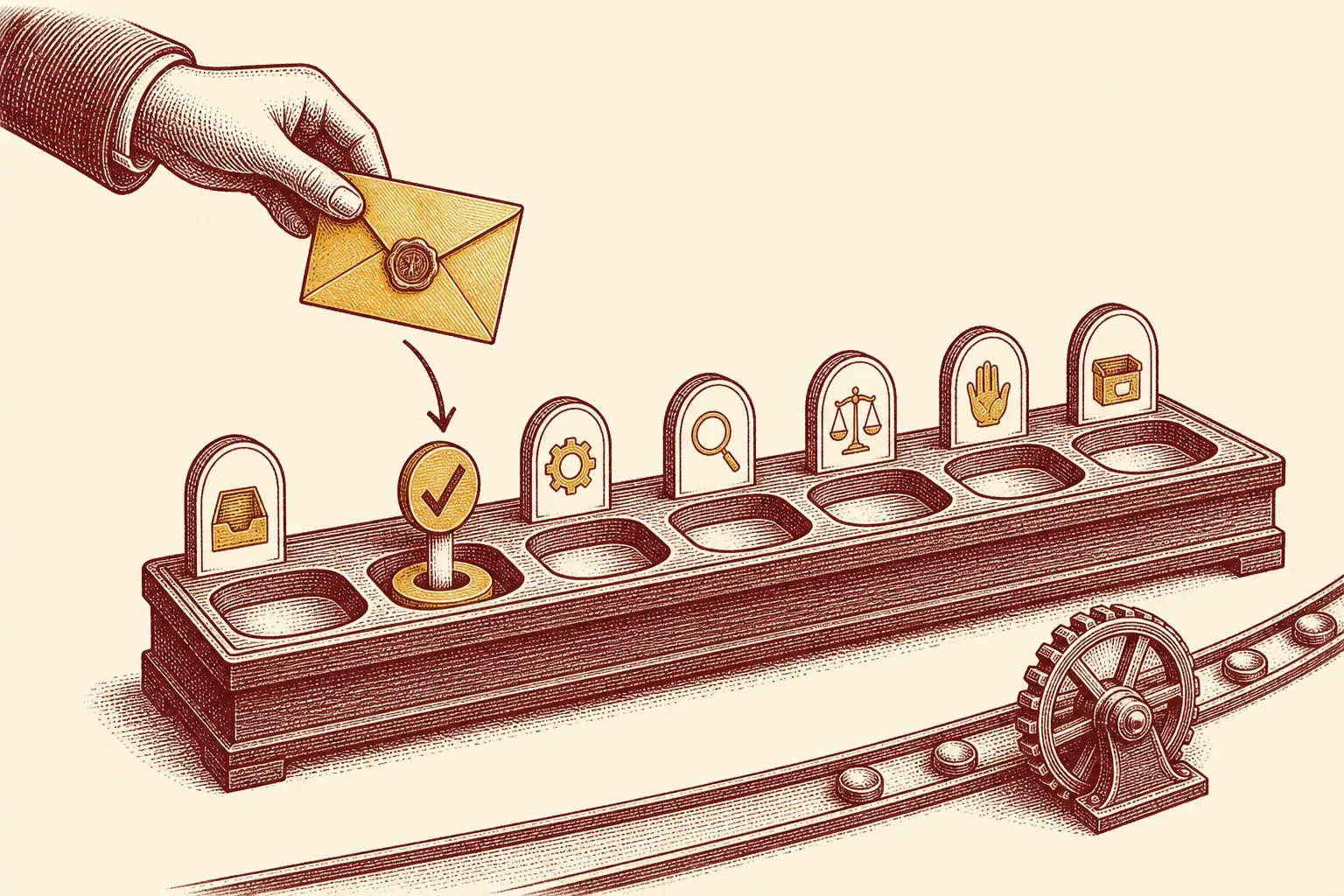
Your inbox is a to-do list that other people get to edit. That is the root of the problem: every message someone sends becomes a quiet obligation, and the inbox keeps all of them visible, undated, and tangled together until the whole thing feels like a wall. The fix is not a faster way to read mail — it is a clean boundary between the place messages arrive and the place your decisions live. I rebuilt my own workflow around exactly that split last month, routing every keeper out of Gmail into Google Tasks and watching a 200-message inbox drop to single digits by lunch. Here is the workflow, the rule that makes it fast, and the native buttons that do the converting for you.
Inbox Versus Task List
An inbox is where other people put things; a task list is where you put your own decisions. Converting emails into tasks moves each obligation out of an endless chronological stream and onto a list you control, where every item has a verb and a due date. That move — not a tidier inbox — is the whole point of an email-to-task system.
The reason a full inbox feels heavy is that it asks you to re-decide the same messages over and over. Every time you scroll past an email you have not acted on, your brain reopens the question “what do I do with this?” — and then closes it again unresolved. A task list ends that loop, because a task is a decision already made, written as a concrete action.
So the goal of converting emails to tasks is not aesthetic. It is to stop using the inbox as a memory device. The inbox is good at receiving; it is terrible at telling you what matters or what is due. The instant an email implies work, that work belongs on a list with a date next to it, and the email belongs in the archive. Everything below is the mechanics of making that handoff fast and reliable.
The Triage Pass: Five Decisions
Process the inbox top to bottom and force each message into one of five decisions: delete, delegate, reply, defer, or do. This is Merlin Mann’s Inbox Zero framework — the “zero” is the amount of attention the inbox claims, not the message count. Nothing is allowed to stay undecided.
The framework comes from a Google Tech Talk Merlin Mann gave on 23 July 2007, where he reduced every possible response to an email down to five verbs: delete, delegate, respond, defer, do. The trap most people fall into is reading the inbox instead of processing it — opening messages, getting a vague sense of dread, and closing them again. Triage means each message gets exactly one of those five outcomes before you move to the next.
- Delete (or archive) anything that needs no action. Most mail qualifies.
- Delegate what someone else should own — forward it and track the handoff.
- Reply if a short answer closes the thread (see the next section on timing).
- Defer anything that needs real work later — this is the email you convert into a task.
- Do the thing immediately when it is quick.
Mann’s point about “zero” is the one people miss. The number that matters is not how many emails sit in the folder; it is how much head-space the inbox is renting. A processed inbox is quiet whether it holds zero messages or three, because none of them are open questions any more. If you are building this habit from scratch, the companion piece on how to reach inbox zero without living in your email walks through the cadence.
The Two-Minute Rule
If the action an email requires takes less than two minutes, do it the moment you read it instead of converting it to a task. David Allen’s two-minute rule from Getting Things Done exists because re-reading, reopening, and re-deciding a quick task later costs more time than finishing it once. Only emails that fail this test become tasks.
This is the rule that keeps the whole workflow from clogging. Per David Allen’s two-minute rule, anything you can complete in under two minutes should be done immediately, “because it would take longer to read it, close it, open it, and read it again than it would to finish it the first time it appears.” A two-line reply, a quick forward, a one-click confirmation — these never deserve a task entry. Doing them on the spot is faster than logging them.
The rule does double duty. It clears the quick wins out of the inbox so they never pile into a task list, and it gives you a sharp dividing line for everything else: if it fails the two-minute test, it is real work, and real work goes on a dated list rather than back in the inbox. That is the moment you convert. Allen frames it as a guideline rather than a law — apply it while you are processing new input, not as an excuse to chase every small thing all day.
Convert an Email in Gmail
In Gmail, open the email and choose Add to Tasks, or drag the message into the Tasks side panel on the right. The task is created in Google Tasks linked back to the original email, and you can then add a date and time. On mobile, open the email, tap the three-dot menu, and choose Add to Tasks.
Gmail builds the conversion in, so no second app is required for the basics. Per Google’s Gmail Help, you open the message and select Add to Tasks; the task saves to Google Tasks, surfaces in the Tasks side panel, and keeps a link back to the source email. On a computer you can also drag an email straight onto the Tasks panel to the same effect.
Two habits make this stick. First, add a date and time to every task you create — Google Tasks accepts both, and a task without a date quietly never gets done. Second, rewrite the task as a verb: the default title is the email subject, which is rarely an action. “Re: Q3 proposal” becomes “send Marc the revised Q3 numbers.” Because the original email stays linked, you keep the full context without keeping the message in your inbox. If you lean on Gmail-native tooling, the same logic powers approaches like using Streak to run pipelines inside Gmail and scheduling follow-ups with Boomerang for Gmail — task conversion is the lightweight, no-install version.
Convert an Email in Outlook
In Outlook, flag the email for follow-up. On a Microsoft-hosted account, that flagged message appears automatically in the Flagged email list inside Microsoft To Do, with the email subject as the task name and a preview in the detail view. From there set a due date, a reminder, add it to My Day, or reopen the message with Open in Outlook.
Outlook’s path runs through the flag. Per Microsoft Support, flagging an email surfaces it in the Flagged email list in Microsoft To Do; the task takes the email’s subject as its name and shows a preview of the body in its detail view. You can turn that list on under To Do Settings → Connected apps. One constraint to know up front: the integration only works on Microsoft-hosted accounts — Outlook.com, Hotmail, Live, or a Microsoft custom domain.
Once the flagged message is a task, treat it like any other: rename it to an action, give it a due date and a reminder, and add it to My Day if it is for today. When you need the full thread, Open in Outlook jumps straight back to the original. Categories sync both ways, so a label you set in To Do shows up on the email and vice versa. The effect is the same as the Gmail flow — the obligation lives on a list, not in the inbox. This pairs naturally with rules that auto-organise mail before it ever reaches you, so triage starts with a smaller pile.
What This Workflow Does Not Fix
Converting emails to tasks organises your work; it does not reduce how much arrives. It cannot prioritise for you, it depends on you actually working the list, and the native integrations have limits — Outlook’s flagged-email sync needs a Microsoft-hosted account, and a task list still has to be reviewed to be useful.
Knowing the edges keeps the system honest:
- It does not cut your volume. A task list handles obligations more cleanly, but it does nothing about the number of emails landing each day. For that, you need upstream filtering — rules that auto-organise email and unsubscribing aggressively — not just better conversion.
- A list you never open is just a different pile. Moving work onto a task list only helps if you work from the list. Build a daily review into the routine, the same way you would a structured approach to organising work emails.
- The native tools have account limits. Outlook’s flagged-email-to-To-Do sync requires a Microsoft-hosted account; on other providers you lose that automatic bridge and need a manual step or a third-party task app.
- Conversion is not prioritisation. Turning an email into a task does not tell you whether it matters. Due dates help, but you still have to decide what is urgent — the tool moves the work, it does not rank it.
Verdict
Converting emails into tasks comes down to one discipline and two buttons: triage every message into a decision, apply the two-minute rule, then push the keepers onto a dated list with Gmail’s Add to Tasks or Outlook’s flagged-email feed into Microsoft To Do. The inbox becomes a doorway, not a storage unit.
Best for: anyone whose inbox doubles as their to-do list and is buckling under it — knowledge workers, founders, anyone processing dozens of action-bearing emails a day. The native Gmail and Outlook tools cover triage, conversion, due dates, and reminders with no extra software, and the two-minute rule keeps the whole thing moving.
Skip if: you need real project management — sub-tasks, dependencies, team assignment, multiple views. Google Tasks and Microsoft To Do are deliberately simple; for complex projects, route emails into a dedicated task manager instead and treat email-to-task as the capture step, not the whole system.
Try it on your next inbox session: process top to bottom, do everything under two minutes on the spot, convert the rest with one click, and date each one. The pile that felt like a wall turns into a short, ordered list — and the inbox, for the first time, is empty because everything in it had somewhere better to go.

Alexis Dollé, email expert for 10+ years. Founder of Email Tools. I test every email client and utility myself, then write about them the way I’d explain them to a friend — no marketing fluff, no sponsored rankings, every claim sourced.
LinkedInSources & references
- David Allen, “The Two-Minute Rule” (Getting Things Done) — anything you can do in less than two minutes should be done the moment you identify it, because re-reading, reopening, and re-deciding the task later costs more than finishing it once. Accessed 2026-06-22. gettingthingsdone.com — The Two-Minute Rule
- Merlin Mann, “Inbox Zero” — Google Tech Talk, 23 July 2007: every incoming message resolves to one of five actions — delete, delegate, respond, defer, do — and “zero” refers to the attention spent on the inbox, not the number of messages in it. Accessed 2026-06-22. youtube.com — Inbox Zero (Google Tech Talk)
- Google Gmail Help, “Create a task from an email” — open the email and choose Add to Tasks; the task saves to Google Tasks, appears in the Tasks side panel, links back to the original email, and accepts a date and time. Accessed 2026-06-22. support.google.com — Create a task from an email
- Microsoft Support, “Using Microsoft To Do with flagged email from Outlook” — flagged Outlook messages appear in the Flagged email list in To Do with the email subject as the task name and a preview in the detail view; tasks can be renamed, dated, reminded, added to My Day, and reopened with Open in Outlook (Microsoft-hosted accounts only). Accessed 2026-06-22. support.microsoft.com — Microsoft To Do with flagged email
Frequently Asked Questions
How do I convert an email into a task in Gmail?
Open the email in Gmail on a computer, then either drag it into the Tasks panel on the right or open the more-options menu and choose Add to Tasks. The task is created in Google Tasks with a link back to the original email, and you can then add a date and time to it. On the Gmail mobile app, open the email, tap the three-dot menu, and select Add to Tasks. The email itself stays in your account — only the action moves onto the list.
How do I turn a flagged Outlook email into a task?
In Outlook, flag the email for follow-up. If you are on a Microsoft-hosted account (Outlook.com, Hotmail, Live, or a Microsoft custom domain), that flagged message automatically appears in the Flagged email list inside Microsoft To Do. The task name is the email’s subject and the detail view shows a preview of the message. From there you can rename it, set a due date and reminder, add it to My Day, and open the original with Open in Outlook.
What is the two-minute rule and how does it apply to email?
The two-minute rule comes from David Allen’s Getting Things Done: if an action takes less than two minutes, do it the moment you identify it rather than deferring it. Applied to email, it means any reply or task you can finish in under two minutes gets done and archived on the spot — because re-reading and re-deciding it later costs more time than the action itself. Only emails that fail the two-minute test are worth converting into tasks.
What is the difference between an inbox and a task list?
An inbox is a place where other people put things; a task list is a place where you put your own decisions. The inbox is chronological, endless, and outside your control. A task list holds only the actions you have chosen, each with a verb and ideally a date. Converting emails into tasks moves the work from someone else’s stream into your own prioritised list — that shift is the entire point of an email-to-task system.
Do I still need a separate task app, or are native email tools enough?
For most people the native tools are enough: Gmail’s Add to Tasks plus Google Tasks, or Outlook’s flagged email feeding Microsoft To Do, cover triage, conversion, due dates, and reminders without a second app. A dedicated task manager helps when you need projects, sub-tasks, team assignment, or task views your email client cannot offer. Start native, and only add a separate app when you feel a specific limit, not before.
How do I keep my inbox at zero after converting emails to tasks?
Process the inbox to empty, not to read. Each message gets one of five decisions — delete, delegate, reply, defer, or do — and a deferred message becomes a dated task before you archive the email. Once the action lives on the list, the email no longer needs to sit in the inbox as a reminder. Do this triage once or twice a day rather than continuously, and the inbox stays empty because every message has somewhere else to go.
Related: How to organize your work emails — the broader system this slots into. How to reach inbox zero — the cadence that keeps it empty. Email rules that auto-organize your inbox — cut the volume before triage. How to use Boomerang for Gmail — schedule and resurface mail on a timer.