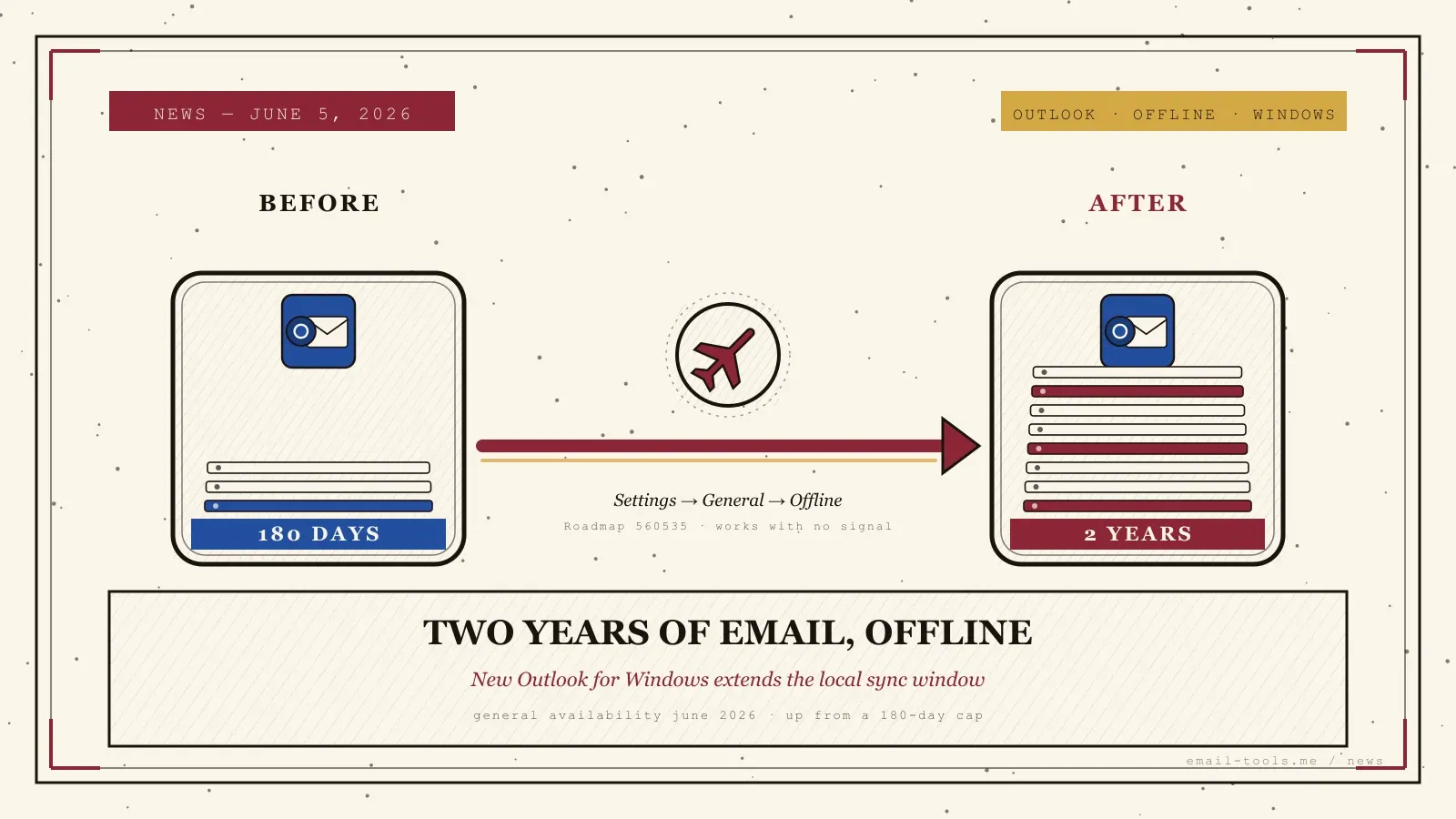
New Outlook for Windows has long been the weak link for working without a connection: it cached only a short window of recent mail, while classic Outlook kept your whole mailbox on disk. That gap is closing. Microsoft has listed a change on its 365 Roadmap — Feature ID 560535, set for general availability in June 2026 — that adds 1-year and 2-year options to Outlook’s offline email sync window, up from a 180-day ceiling. Here is exactly what changed, who it helps, and how to switch it on in under a minute.
What Microsoft changed
Microsoft added two longer choices — 1 year and 2 years — to the “Days of email to save” control in new Outlook for Windows, so you can keep far more of your mailbox available offline. Per the Microsoft 365 Roadmap entry, Feature ID 560535, the change is listed for general availability in June 2026, rolling out worldwide on standard multi-tenant, and lets users “save 1 year or 2 years of email on their device for offline access.”
The setting itself is not new — its range is. Until now, new Outlook for Windows offered a fixed offline window of recent mail, commonly 30, 90 or 180 days under Settings > General > Offline. The June update extends the top of that range from roughly six months to one or two years. As M365 Admin notes in its write-up of the roadmap item, the new choices appear under the same path — Settings > General > Offline > Days of email to save — and the roadmap item was published in late April 2026 ahead of the June rollout. For day-to-day users, the headline is simple: roughly four times more mail can now live on your laptop, ready to read and search with no signal.
Who this helps — and why it matters
This is for anyone who works where the connection is not: on flights, on trains, in basements and rural dead zones, or while travelling abroad without data. A longer offline window means more of your archive is searchable and readable offline, not just the last few months. It also removes one of the standing reasons people kept using classic Outlook instead of the new app.
The context is the long, bumpy migration from classic to new Outlook for Windows. Classic Outlook stored a full local copy of your mailbox in an OST file, so the entire history was available with no connection; new Outlook started with a far shorter cached window, which was a real downgrade for heavy offline users. Stretching the window to one or two years does not fully match classic Outlook’s “everything, always” behaviour, but it covers the realistic need — finding a contract, a booking or a thread from last year while you are offline. It lands alongside other recent new-Outlook changes we have tracked, from the Microsoft 365 Copilot redesign to external-sender tags arriving in inbox rules and the retirement of OneView and TrueTime in Outlook on the web — all part of Microsoft steadily filling the gaps in the new client.
How to set it — and the catch
Open Outlook, go to Settings > General > Offline, make sure offline access is on, then set “Days of email to save” to 1 year or 2 years once it appears. Best for: people who work on flights, trains or flaky connections and want last year’s mail searchable offline. Skip the longest setting if: your laptop is tight on disk — two years of messages and attachments can run to several gigabytes.
The mechanics take under a minute. I opened Settings > General > Offline in new Outlook for Windows on my own machine: today it offers the shorter windows, and the 1-year and 2-year choices arrive through the gradual June rollout, so do not worry if you do not see them yet. The one judgement call is storage. The bigger the window, the more disk it eats, because Outlook caches the messages and — if you let it — their attachments; the same Offline pane lets you include or exclude attachments and choose which folders to keep. The practical move: pick the longest window your free space comfortably allows, exclude attachments if you are storage-constrained, and leave background sync on so the cache stays current. For a feature that simply changes a dropdown, it meaningfully improves life on the road — and quietly removes one more excuse to cling to classic Outlook.

Alexis Dollé, email expert for 10+ years. Founder of Email Tools. I test every email client and utility myself, then write about them the way I’d explain them to a friend — no marketing fluff, no sponsored rankings, every claim sourced.
LinkedInFrequently asked questions
What is changing with offline email in new Outlook for Windows? — you can now keep 1 or 2 years of mail cached, up from a 180-day cap
Microsoft is adding two new choices to the offline sync window: keep 1 year or 2 years of email cached on your device. The setting lives under Settings > General > Offline > Days of email to save. It is tracked on the Microsoft 365 Roadmap as Feature ID 560535, listed for general availability in June 2026, worldwide on standard multi-tenant.
What were the offline options before this change? — typically 30, 90 or 180 days
New Outlook for Windows let you cache a fixed window of recent mail for offline use — commonly 30, 90 or 180 days under the same Offline settings pane. The June 2026 update extends the top of that range from roughly six months to one or two years, a big jump for anyone who relies on offline access.
Where do I find the setting? — Settings > General > Offline > Days of email to save
Open Outlook, go to Settings (the gear), choose General, then Offline. Turn on offline email, calendar and people if it is not already on, then set ‘Days of email to save’ to 1 year or 2 years once the option appears on your account. The rollout is gradual, so it may not show immediately.
Will keeping 2 years of email use a lot of disk space? — yes, potentially several gigabytes
It can. Two years of messages plus attachments can run to several gigabytes depending on your mailbox. If your laptop is short on storage, the shorter windows are safer; pick the longest window your free space comfortably allows. You can include or exclude file attachments from the offline copy in the same Offline settings.
Why does this matter if classic Outlook already worked offline? — it narrows the gap that kept people on classic Outlook
Classic Outlook kept a full local copy of your mailbox in an OST file, so the whole archive was available offline. New Outlook for Windows started with a much shorter cached window, which frustrated people moving over. Extending the window to one or two years narrows that gap and removes one of the common reasons to stay on classic Outlook.
Does this apply to Outlook on the web and the mobile apps? — it targets new Outlook for Windows; mobile has its own control
The roadmap entry is scoped to the Outlook web codebase that new Outlook for Windows is built on, and the feature description names new Outlook for Windows specifically. Outlook mobile has its own, separate ‘days to sync’ control. Classic Outlook for Windows is unaffected because it already caches the full mailbox.
Sources
- Microsoft 365 Roadmap — Feature ID 560535, “Outlook: 1-year and 2-year options for email sync window (Offline settings)” (primary, official: new 1-year and 2-year choices under Settings > General > Offline > Days of email to save, general availability June 2026, worldwide standard multi-tenant, listed late April 2026)
- M365 Admin (João Ferreira) — Outlook: 1-year and 2-year options for email sync window (corroborates the roadmap ID 560535, the June CY2026 general-availability date, and the Settings > General > Offline path)
- TRACCreations4E — New Outlook Offline Features Availability (documents the prior offline window options of 30, 90 and 180 days, the “Days of email to save” control, the offline on/off toggle for email, calendar and people, and attachment inclusion)
- Microsoft Support — Work offline in Outlook (official guidance on enabling offline access and choosing which folders and attachments to keep cached)
- Microsoft Support — What’s new in new Outlook for Windows (context on new Outlook’s offline model and how it differs from classic Outlook’s full OST mailbox cache)