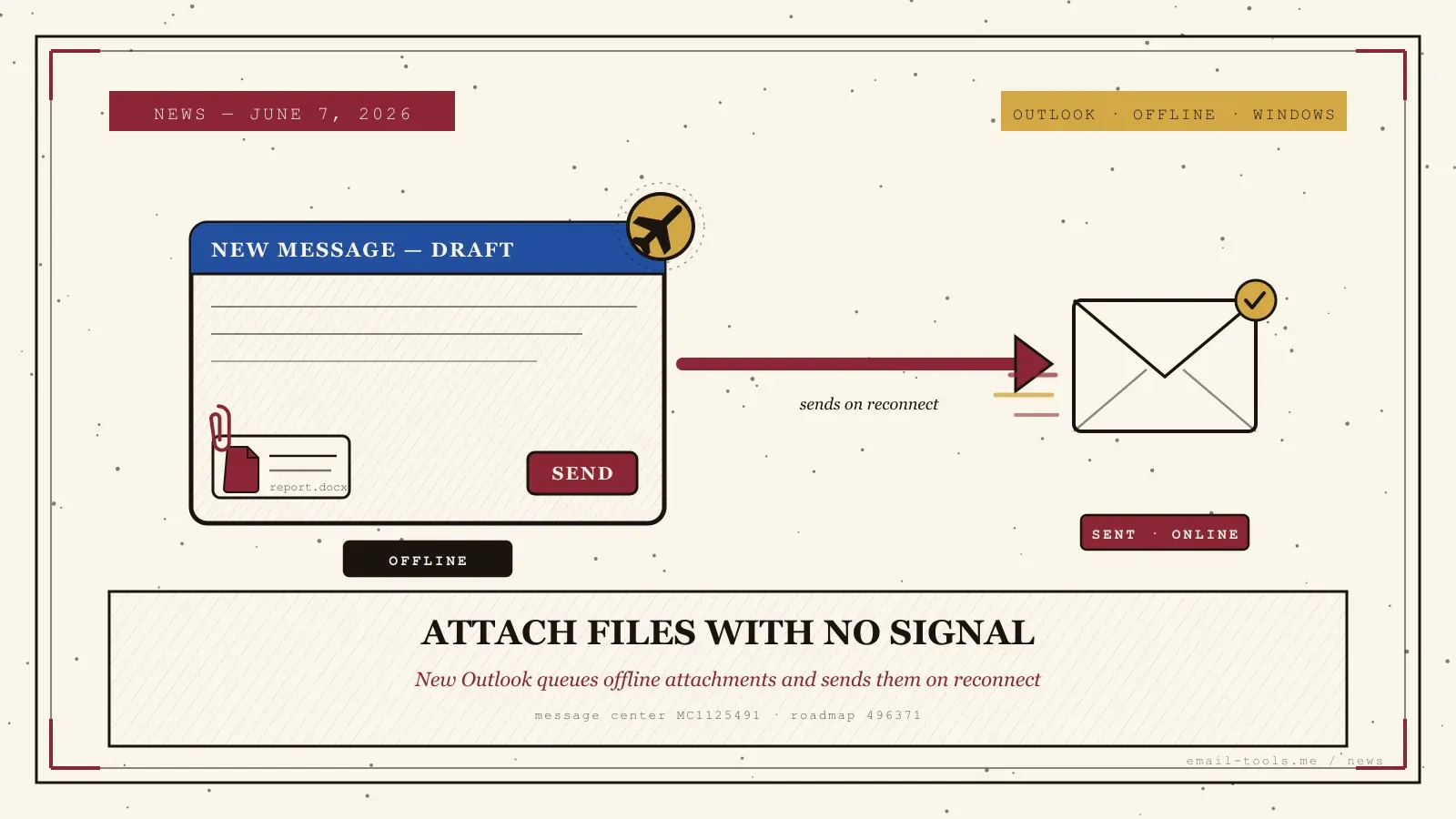
Anyone who has tried to fire off an email with a document attached from a plane, a train tunnel or a dead-zone hotel knows the old new-Outlook annoyance: you could write the message offline, but the moment you went to attach a file, you were stuck. Microsoft has now fixed it. Per Message Center post MC1125491 — refreshed on 5 June 2026 — new Outlook for Windows lets you add Outlook offline attachments to a draft with no connection, and sends the whole thing automatically once you reconnect. Here is what changed, who it helps, and how to switch it on.
What Microsoft changed
New Outlook for Windows can now attach files to an email while you are completely offline, then queue and send that message — attachment included — the instant your device is back online. Microsoft describes the feature as enabling users “to add file attachments while composing emails offline, improving productivity for those working without an internet connection,” in Message Center post MC1125491, tracked on the roadmap as Feature ID 496371.
The mechanics are simple. With offline mode enabled, you compose a message, attach a locally stored file, and hit send while disconnected; Outlook holds it in the outbox and dispatches it — body and attachment together — as soon as a connection returns. As the MW Pro write-up of the 5 June update notes, the capability had been delayed through late 2025 and early 2026 before reaching general availability, and the latest refresh confirms the government-cloud rollout window. Neowin frames it as making Outlook “more resilient to net outages” — a small change, but one that removes a genuinely irritating dead end in the new client.
Who this helps — and why it matters
This is for anyone who drafts mail where there is no signal: on flights, on trains, in basements, or while travelling abroad without roaming data. Until now you could write offline but not attach offline, so a document-laden email had to wait until you reconnected to even be assembled. Now you build it once, offline, and it ships itself the moment you are back online — no half-finished draft to remember later.
The change is part of Microsoft’s slow, steady effort to bring new Outlook for Windows up to parity with the classic client. Classic Outlook stored your whole mailbox in a local OST file, so composing and attaching offline always just worked; the new app started life much more dependent on a live connection. This lands right alongside last week’s roadmap move to extend the offline email sync window to one and two years — the two together mean more of your mail is available offline and you can act on it offline, not just read it. It joins other recent new-Outlook fills we have tracked, from external-sender tags arriving in inbox rules to the Microsoft 365 Copilot redesign, each one chipping away at a reason people gave for staying on classic Outlook.
How to switch it on — and the small print
Open new Outlook, go to Settings > General > Offline, turn on “Enable offline email, calendar, and people,” and make sure “Include file attachments” is on. Best for: frequent flyers and commuters who need to send document-heavy mail from dead zones. Watch out if: you are on a work account — whether this is on by default is set by your admin’s offline mailbox policy, and large attachments still consume local disk.
Setup takes under a minute. In new Outlook for Windows, open Settings (the gear), choose General, then Offline; switch on offline access for email, calendar and people, and confirm the attachment toggle is enabled. After that, attaching a file to an offline draft just works, and the message sends itself on reconnect. Two caveats worth knowing. First, this is new Outlook for Windows only — classic Outlook already did this, and Outlook mobile is a separate story. Second, on a managed work or school account, whether the feature is on by default is governed by the OWAMailboxPolicy-OfflineEnabledWin mailbox policy your IT team controls, so if the option is missing, that is the first thing to check. For a feature that amounts to one more thing finally working without a connection, it meaningfully smooths out life on the road.

Alexis Dollé, email expert for 10+ years. Founder of Email Tools. I test every email client and utility myself, then write about them the way I’d explain them to a friend — no marketing fluff, no sponsored rankings, every claim sourced.
LinkedInFrequently asked questions
What is the new offline attachments feature in Outlook? — you can attach a file to a draft with no connection, and it sends on reconnect
New Outlook for Windows now lets you add file attachments to a draft email while you have no internet connection. The message and its attachments are queued and sent automatically once your device reconnects. Microsoft tracks it as Message Center post MC1125491 and Microsoft 365 Roadmap Feature ID 496371.
How do I turn on offline attachments in new Outlook? — Settings > General > Offline, then enable “Include file attachments”
Open new Outlook for Windows, go to Settings > General > Offline, turn on ‘Enable offline email, calendar, and people’, and make sure ‘Include file attachments’ is toggled on. Compose a message offline, attach your file, and hit send — it will leave your outbox the moment you are back online.
Which version of Outlook does this apply to? — new Outlook for Windows only
Only the new Outlook for Windows. Classic Outlook for Windows already worked this way because it kept a full local copy of your mailbox. Outlook on the web and the mobile apps are not covered by this specific Message Center post.
When is the offline attachments feature available? — generally available now; GCC tenants through June 2026
Per Message Center post MC1125491, the targeted release ran from late October 2025 to late March 2026 and general availability is already rolling out worldwide. Government (GCC) tenants get it from early June 2026, with completion expected by the end of June 2026. The rollout is gradual, so it may not appear on your account immediately.
Can my IT admin control this feature? — yes, via the offline mailbox policy
Yes. Whether offline attachments are on by default depends on your organisation’s OWAMailboxPolicy-OfflineEnabledWin mailbox policy, which admins manage. If you are on a work or school account and the option is missing, your administrator may not have enabled offline mode yet.
Does composing offline work without attachments too? — yes, this update just closes the attachment gap
Yes. New Outlook for Windows already lets you read cached mail, search it, and write replies while offline; queued messages send on reconnect. This update closes the remaining gap — being able to attach a local file to that offline draft instead of having to wait until you were back online to add it.
Sources
- Microsoft 365 Message Center — MC1125491, “Microsoft Outlook for Windows: Add attachments while offline” (primary, official: enables users to add file attachments while composing offline; targeted release late Oct 2025–late Mar 2026; general availability currently rolling out; GCC early June–end June 2026; Settings > General > Offline with “Include file attachments”; OWAMailboxPolicy-OfflineEnabledWin)
- Microsoft 365 Roadmap — Feature ID 496371, “Outlook: add attachments while offline in the new Outlook for Windows” (official roadmap entry confirming scope: new Outlook for Windows, attach while offline, auto-send on reconnect)
- MW Pro (Mark Wilson) — “Updated: Add attachments while offline (MC1125491.5)”, 5 June 2026 (corroborates the feature, the delayed rollout through late 2025/early 2026, and the June 2026 GCC window; documents the Settings path and the auto-send-on-reconnect behaviour)
- Neowin — “Outlook for Windows is getting a new feature that will make it more resilient to net outages” (independent press framing of the offline-attachment change and its practical benefit during connectivity loss)
- Microsoft Support — “Work offline in Outlook” (official guidance on enabling offline access in new Outlook and choosing what is cached, including file attachments)